
Connect Tab
Paste your webhook URL, then test a real conversation.
- In n8n, create a workflow that starts with a Webhook node (method: POST) and ends by responding with the reply text. Activate the workflow and copy the production webhook URL.
- In the Connect tab, paste that URL into the n8n webhook URL field. It's stored with your widget and never shared with anyone else.
- Use the Test it panel to send a real message. It POSTs to your webhook exactly like the live widget will, and shows the reply — so you know everything works before you embed.
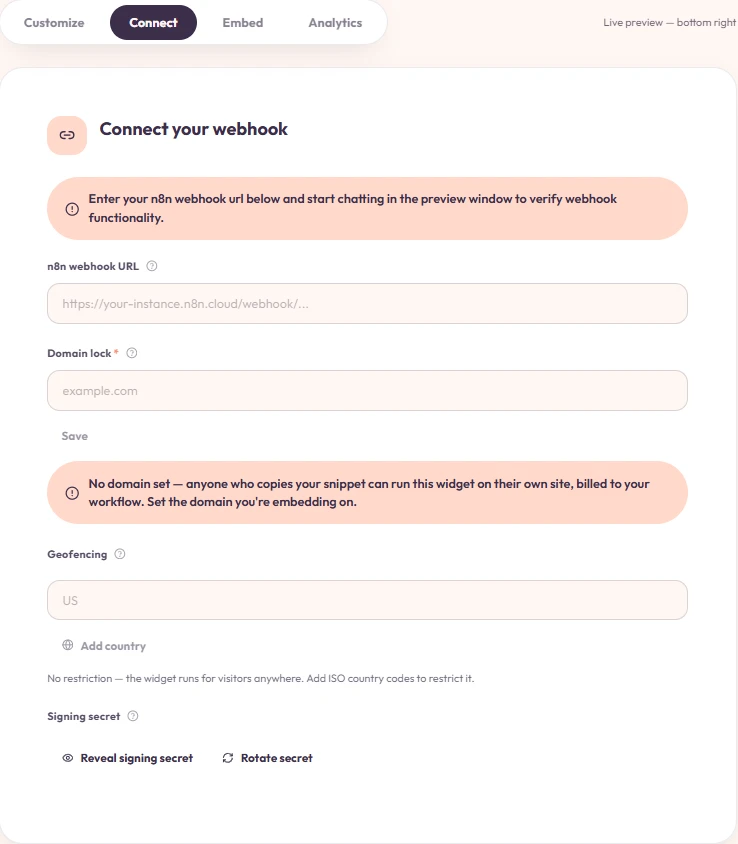
Below the webhook URL, the Connect tab also has Domain lock, Geofencing, and Signing secret — see Security considerations for how each one works.
Each message arrives at your webhook as JSON with a chatInput field containing the visitor's text (or as a multipart request when files are attached). Whatever text your workflow returns is rendered as the assistant's reply.
Use the test window to check responses live. This standalone feature helps verify connectivity and run pre-production tests before you go online.
If something goes wrong
While your workflow is thinking, visitors see a typing indicator. If the request fails — your n8n is down, or the workflow errors — the widget shows a clear error message instead of leaving them staring at nothing. Since Stylchat is not in the request path, your widget's uptime is exactly your n8n's uptime.