On this page
Zoom Video Meeting Integration
Notice on Availability & Review Status
Stylchat’s Zoom Integration is currently undergoing review on the Zoom App Marketplace. Workspace owners and authorized test hosts can connect and manage Zoom accounts as outlined in this official guide.
1. Overview
Stylchat connects seamlessly with your Zoom account to automate video appointment scheduling. When a customer books a video consultation or service through your public Stylchat booking page, Stylchat instantly provisions a unique, private Zoom meeting room with an encrypted join link and passcode.
Meeting credentials and join links are automatically delivered to both the client and the team host via instant on-screen confirmations, automated email notifications, and optional synchronized calendar invites (Google Calendar and Outlook).
2. Prerequisites
Before connecting Zoom to Stylchat, ensure you have:
-
An active Stylchat Workspace: An account with Workspace Owner or Team Member role holding availability management permissions (
scheduling.manage_availability). -
A Zoom User Account: A valid Zoom account (Basic Free, Pro, Business, or Enterprise) with permissions to create meetings and authorize marketplace applications.
-
Supported Web Browser: Google Chrome, Mozilla Firefox, Apple Safari, or Microsoft Edge with cookies and redirects enabled.
3. Adding the App (Installation & Authorization)
Follow these clear step-by-step instructions to connect and authorize Stylchat with your Zoom account:
Step 1 — From scheduling, navigate to integration → Zoom and click connect.
Log in to your dashboard at https://app.stylchat.com. In the navigation sidebar, click Scheduling → Integrations. Under Connected Accounts, find Zoom and click the Connect with Zoom button.
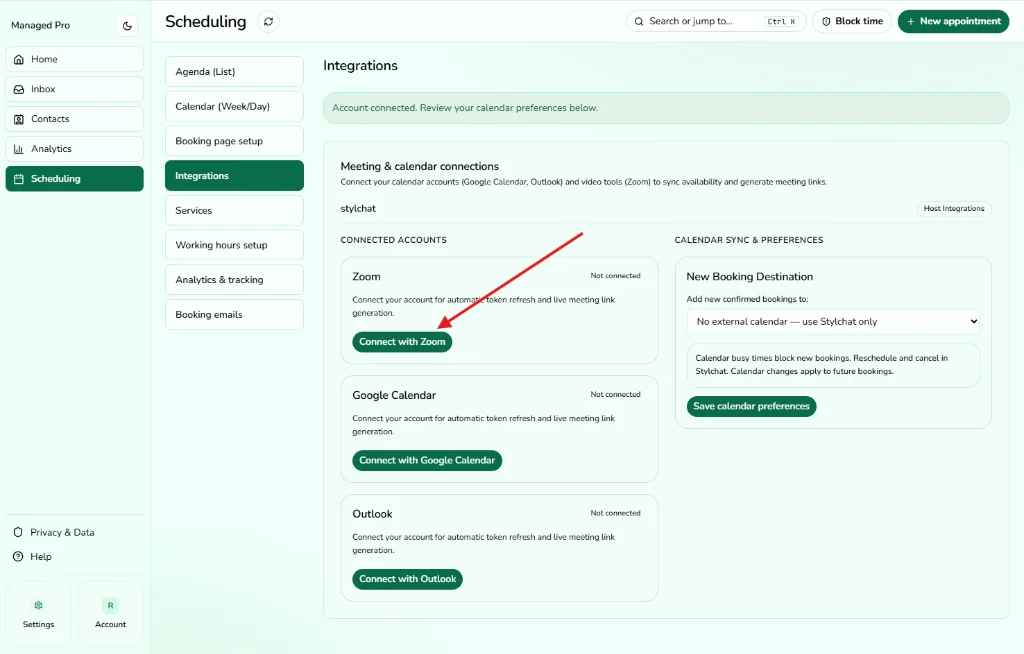
Screenshot 1: In Scheduling → Integrations, click the “Connect with Zoom” button.
Step 2 — A pop-up window will appear, click allow.
You will be securely redirected to Zoom’s authorization portal. Review the requested permissions and click Allow to grant Stylchat permission to automate your meetings.
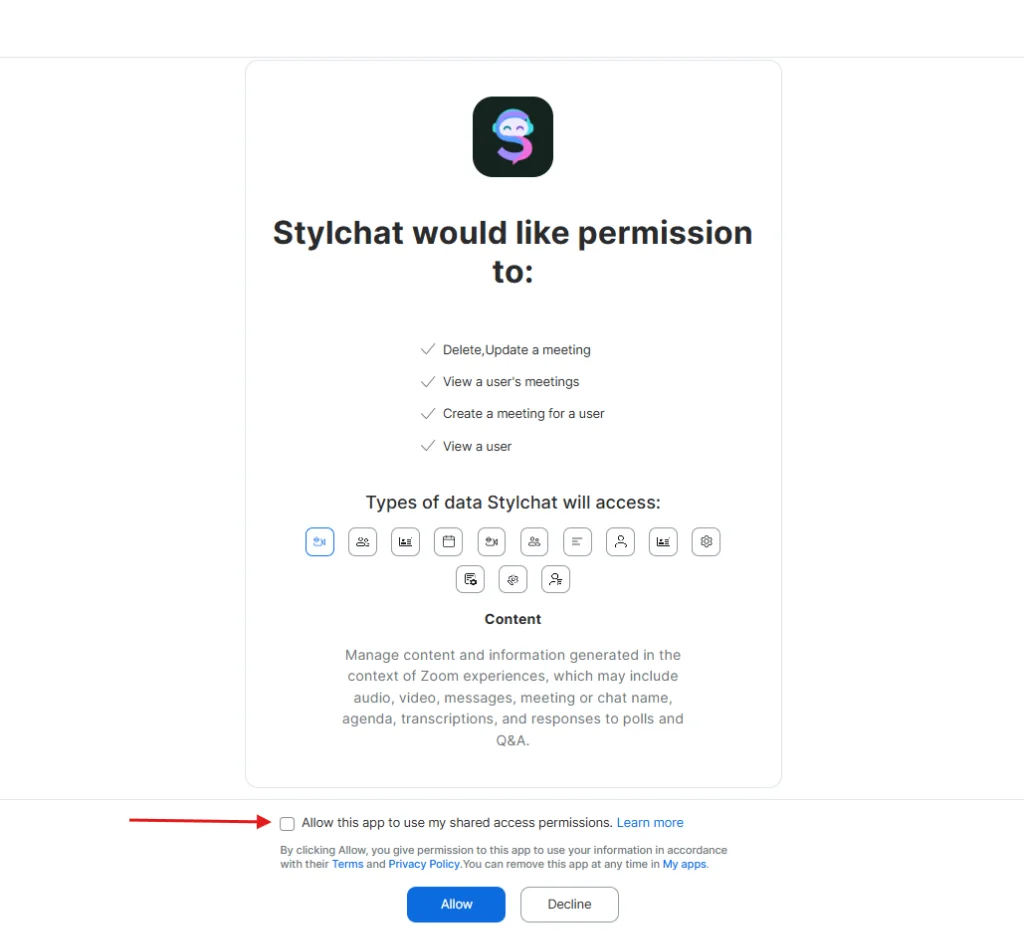
Screenshot 2: Zoom OAuth authorization pop-up. Check permissions and click “Allow”.
Scopes requested by Stylchat:
-
user:read:user— Verifies your Zoom host profile to bind it with your Stylchat host account. -
meeting:write:meeting— Automatically generates dedicated Zoom meeting rooms for client bookings. -
meeting:read:meeting&meeting:read:list_meetings— Retrieves meeting information and prevents schedule conflicts. -
meeting:update:meeting— Updates meeting date and time if an appointment is rescheduled. -
meeting:delete:meeting— Cancels and removes the Zoom meeting room if an appointment is cancelled.
Step 3 — You will be redirected back to connect screen. Integration can be disconnected by clicking disconnect button.
Upon authorization, Zoom redirects you back to Stylchat. The Zoom card will display a green Connected badge showing your connected Zoom email address. When you want to disconnect, click the Disconnect button.
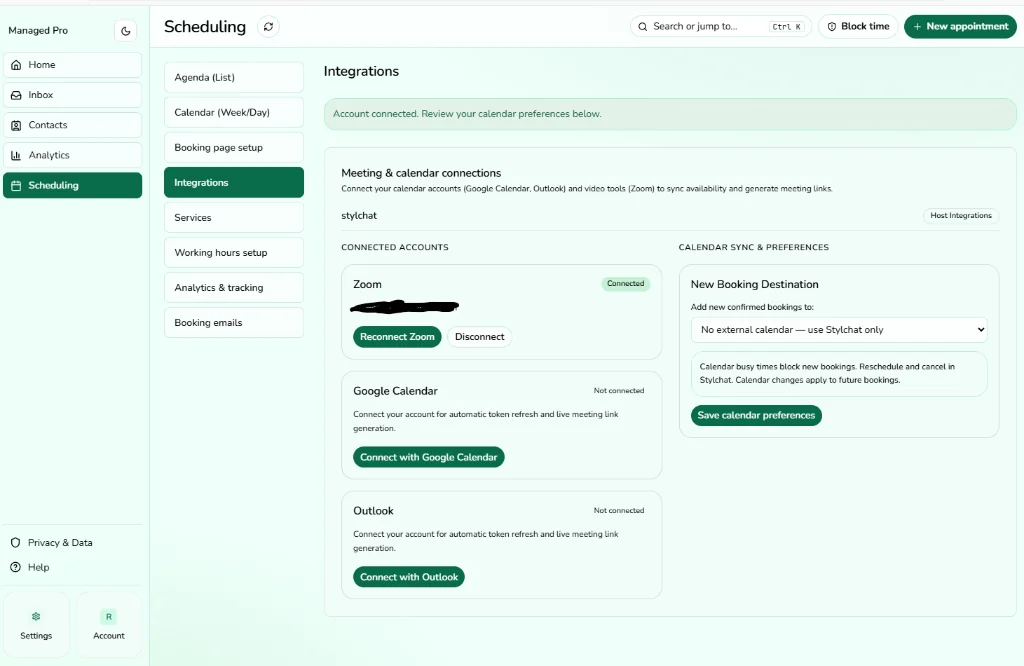
Screenshot 3: Connected screen showing Zoom Connected status and the Disconnect button.
4. Using the App (Feature Usage Guidance)
A. Configuring a Service with Zoom Video
-
Go to Scheduling > Services.
-
Click New Service or edit an existing service (e.g., “30-min Strategy Call”).
-
Under Location / Meeting Type, select Zoom (“Automatically create a unique Zoom meeting for each booking”).
-
Ensure the assigned host has their Zoom account connected.
-
Save and publish your service.
B. Customer Booking Flow & Meeting Generation
When a customer books this service on your public booking page (/book/:workspaceSlug):
-
Stylchat automatically contacts the Zoom API to generate a unique meeting room with random passcode protection.
-
The customer immediately sees the join URL and dial-in details on their post-booking confirmation screen.
-
An automated confirmation email containing the one-click Zoom link is dispatched to the client and the host.
-
If Google Calendar or Outlook is connected, the calendar event includes the Zoom join link in the location and notes field.
C. Automated Rescheduling and Cancellations
-
Rescheduling: If either party reschedules via the self-service booking portal (
/manage-booking/:id), Stylchat updates the start time and duration of the existing Zoom meeting room automatically. -
Cancellation: If an appointment is cancelled, Stylchat deletes the scheduled meeting from Zoom, freeing up host calendar resources.
5. Troubleshooting & FAQ
Badge displays “Reconnect required”
Cause: Zoom access tokens expire and refresh automatically; however, changing your Zoom password, revoking authorizations, or administrative security resets can invalidate tokens. Resolution: Navigate to Scheduling > Integrations and click Reconnect Zoom to re-authorize.
Error: “Connect this host’s Zoom account in Integrations before publishing”
Cause: You attempted to save a service with “Zoom” selected as the location, but the assigned host has not connected their Zoom account yet. Resolution: Connect Zoom under the host’s profile in Integrations first, then publish the service.
Error: “Cancel or finish upcoming bookings using this account before disconnecting”
Cause: Stylchat safeguards client meetings by preventing accidental disconnections while active future appointments rely on that Zoom account. Resolution: Conclude or reschedule those bookings to another location type before disconnecting.
Client states they didn’t receive the Zoom link
Resolution: All appointment meeting links are recorded in your dashboard under Scheduling. Click on any booking to view or copy the active Zoom URL directly.
Need assistance or technical support?
Contact our dedicated support desk at support@stylchat.com or submit a message through our Contact Page. We respond to inquiries within 1 business day.
6. Removing the App (Deauthorization & Disconnect)
You can disconnect or uninstall the Stylchat Zoom integration at any time using either of the two methods below:
Method 1: Disconnect from Stylchat Dashboard (Recommended)
-
Log in to your Stylchat workspace at https://app.stylchat.com.
-
Go to Scheduling > Integrations.
-
Locate the Zoom card under Connected Accounts (as shown in Screenshot 3 above).
-
Click the Disconnect button.
-
Stylchat immediately calls Zoom’s OAuth revocation endpoint (
https://zoom.us/oauth/revoke) to permanently revoke the token and clears the connection.
Method 2: Deauthorize via Zoom App Marketplace
-
Log in to your Zoom Account and navigate to the Zoom App Marketplace.
-
Click Manage in the top navigation bar, then select Installed Apps (or search for Stylchat).
-
Find the Stylchat application in the list.
-
Click Uninstall (or Remove).
-
Confirm the removal when prompted.
-
Zoom dispatches an authenticated
app_deauthorizedwebhook event directly to Stylchat’s secure webhook endpoint. Stylchat immediately sets the connection to inactive and purges all stored credentials.
7. User Impact Notes & Data Retention Compliance
Please note the operational effects and data handling procedures upon removing or disconnecting the Zoom integration:
-
Existing Scheduled Meetings: Meetings previously generated on Zoom remain intact in your Zoom account and on customer calendars. However, Stylchat will no longer be able to automatically modify, update, or cancel those Zoom rooms if appointments are changed.
-
Future Bookings: Customers will not be able to book services configured with “Zoom” as their location until Zoom is reconnected. You should edit any published services to use an alternate meeting type (such as Google Meet, in-person, or phone) or reconnect Zoom.
-
Immediate Token Purge (Zero Token Retention): In compliance with Zoom Marketplace Developer Data Compliance regulations, Stylchat immediately purges and erases all encrypted OAuth access tokens, refresh tokens, and session identifiers from our production database upon receiving deauthorization.
-
No Recording or Media Storage: Stylchat never accesses, records, or stores Zoom video streams, audio recordings, or in-meeting chat logs.
-
Privacy Policy & Terms: For comprehensive information regarding our data protection standards and subprocessors, please view our Privacy Policy and Terms of Service.